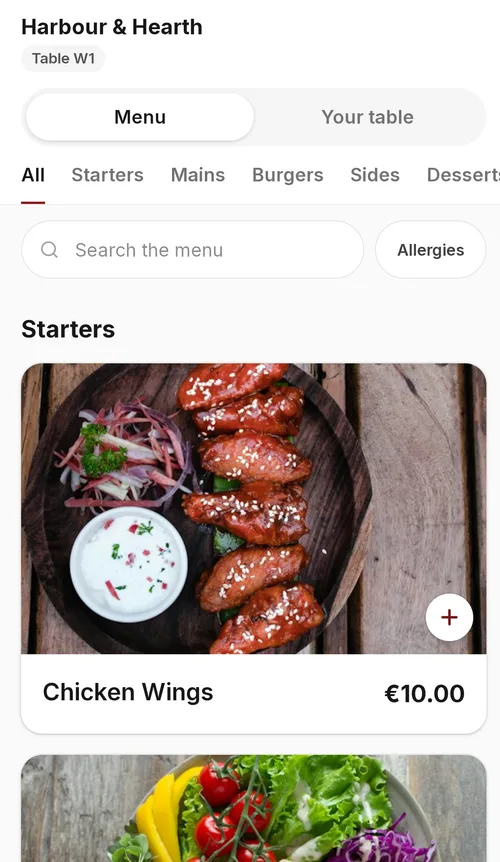
Guests scan the QR on their table, order from their phone and pay at the end or on their phone. Add your tables on the floor map first: each table gets its own code.
1. Turn on table ordering
- In the back office, go to Settings → Table ordering.
- Tick Guests can order from the table.
2. Choose how a table opens
- Guests order, a waiter confirms the first order (recommended). The first order waits until a waiter checks the table and taps Confirm on the till. After that, rounds go straight to the kitchen.
- A waiter opens the table first. Guests can only order after a waiter opens the table on the till.
- Straight to the kitchen. Every order goes to the kitchen at once. Only for places where staff can see every table.
Start with the recommended option. It stops a prank order from someone who scanned a photo of the code at home.
3. Second language (optional)
Choose a Second language for dish names and guests can switch the menu to it. Add the translated names in each dish's details under Menu → Menu Items.
4. Print the QR stands
- Scroll to Table QR codes. Every table from the floor map has its own code, labelled with the table name.
- Click Print stands. Print on card, cut them out and put each one on its own table.
- Scan one with your phone to check it opens your menu with the right table name.
If a code is copied or shared (for example, posted online), click New code under that table. The old code stops working, so print that table's stand again.
5. Paying at the table (optional)
Paying on the phone needs a card account. Connect one under Online payments in your website admin, then come back to this page.
- Tick Guests can pay on their phone: the whole bill, split equally, or their own items.
- Choose when guests pay: At the end (sit-down restaurants) or Before the kitchen gets it (cafés and fast food, no waiter needed to confirm).
- Optional: up to four tip choices (e.g. 10, 12.5, 15). Card tips go to the staff tip pool in HR & Workforce → Pay Rules.
- Optional: a service charge percentage and the group size it starts from (e.g. 10% from 6 guests).
6. Test it
- Scan a table's code and place an order.
- On the till, confirm the table if you chose the recommended option.
- Check the order reaches the kitchen screen or printer for the right station.
See QR and online ordering for everything guests can do.
What's next
Go to POS terminals to pair your till and take a test order.