You need: Android phone or tablet (Android 8+), Qavyo POS app from Google Play, device and printers on the same Wi-Fi.
1. Generate a pairing code
- Settings → POS Terminals → Add terminal.
- Name it (e.g. "Counter 1") → Create code.
- An 8-digit code appears. Valid for 10 minutes.
2. Pair the device
- Open the Qavyo POS app on Android.
- Tap Pair device and enter the 8-digit code.
- Done — the device stays paired permanently.
3. Sign in as staff
The POS uses a 4-digit PIN, not a password. Set each staff member's PIN in HR & Workforce → Staff Directory first. Then tap a name on the POS lock screen and enter the PIN.
4. Take a test order
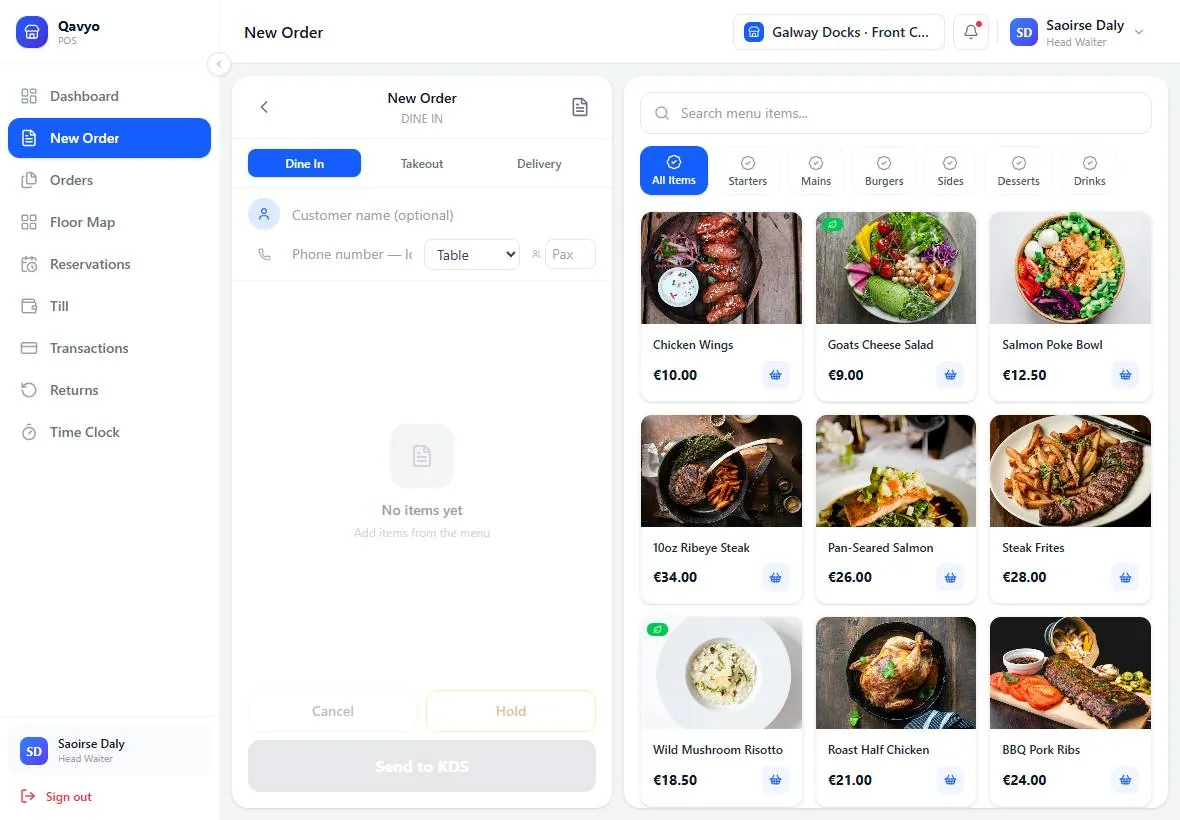
- Tap a table (or go straight to the order screen in quick-sale mode).
- Add items, tap Checkout, choose payment method.
- Receipt prints automatically if a printer is paired.
- Order appears on the kitchen KDS or prints to the kitchen station printer.
5. Receipt printer
- Settings → Printing → Add printer → enter IP address → station: POS receipt → Test print.
Offline mode
When the internet drops, the POS keeps working. Orders save locally and sync when the connection returns. See offline mode for full details.
Web POS (no Android device?)
Use pos.qavyo.com in any browser. Same features except Bluetooth printing.
What's next
Go to Kitchen display and printing to pair kitchen screens and set up station printers.