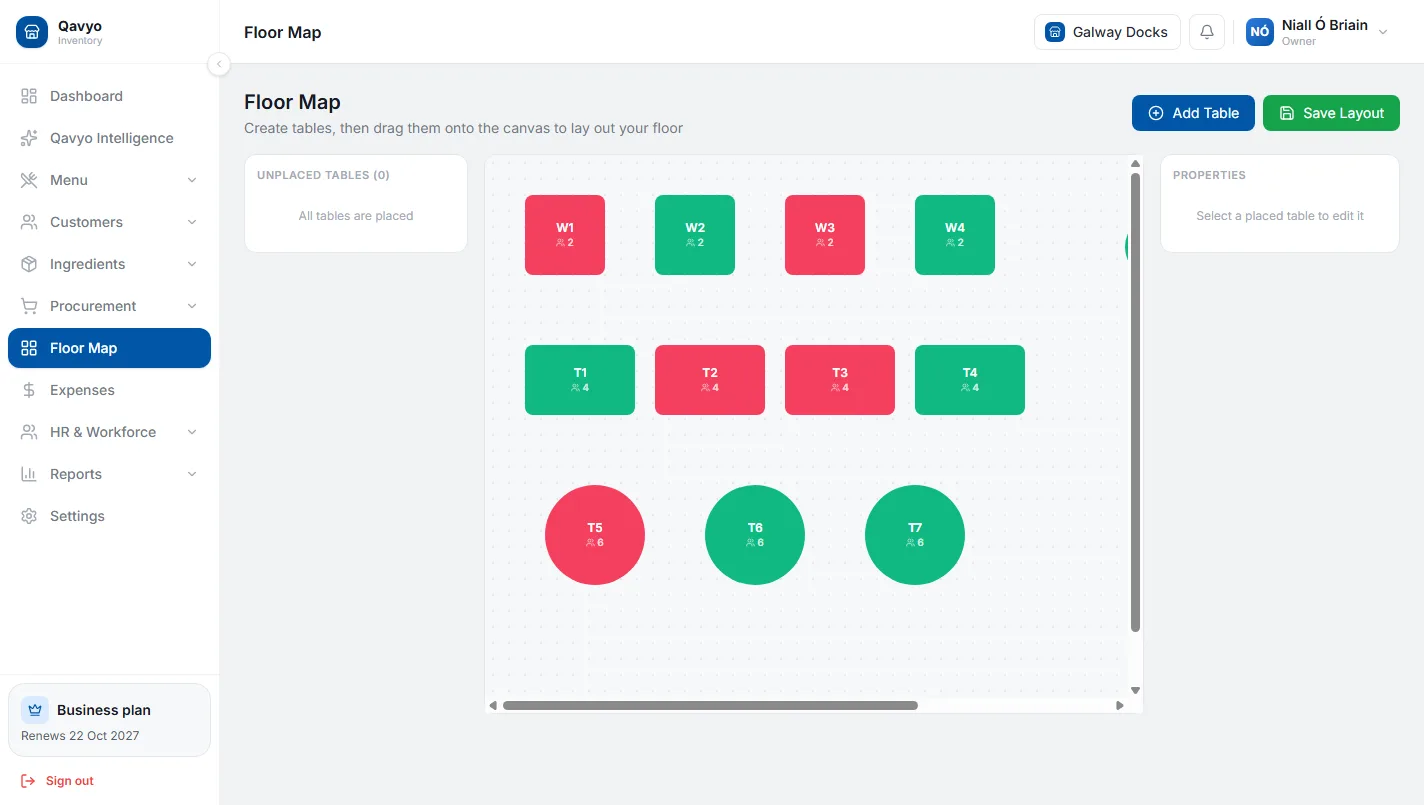
The floor map appears on the POS. Staff tap a table before taking an order — so orders stay attached to the right table throughout the meal. Open Floor Map from the sidebar.
1. Create a section
Sections are areas — "Ground floor", "Terrace", "Private room". Each section has its own view on the POS.
- Click Add section, give it a name, Save.
2. Add tables
- Select a section → Add table.
- Table number or name (e.g. "T1", "Bar 1"), covers (number of seats).
- Drag the table into position on the canvas.
3. Table shapes
Click a table to change its shape (square, rectangle, round) and resize it. Visual only — does not affect ordering.
Quick-sale mode (no tables)
Counter service or takeaway? Skip this section. Set Settings → POS Terminals → [terminal] → Mode to quick-sale. The POS opens straight into the menu.
Occupied tables show in a different colour on the POS — staff know at a glance which tables are free and which have open orders.
What's next
Go to POS terminals to pair your till and take a test order.