1. Sign up
- Go to qavyo.com/start-free and click Start 30 days free.
- Enter your name, business name, email address and a password. Use an email address you check daily — Qavyo sends receipts, staff alerts and support replies to it.
- Choose Restaurant as the business type.
- Click Create account.
2. Verify your email
- Open the verification email from Qavyo (check spam if it does not arrive within a minute).
- Click Verify email or enter the 6-digit code on the verification screen.
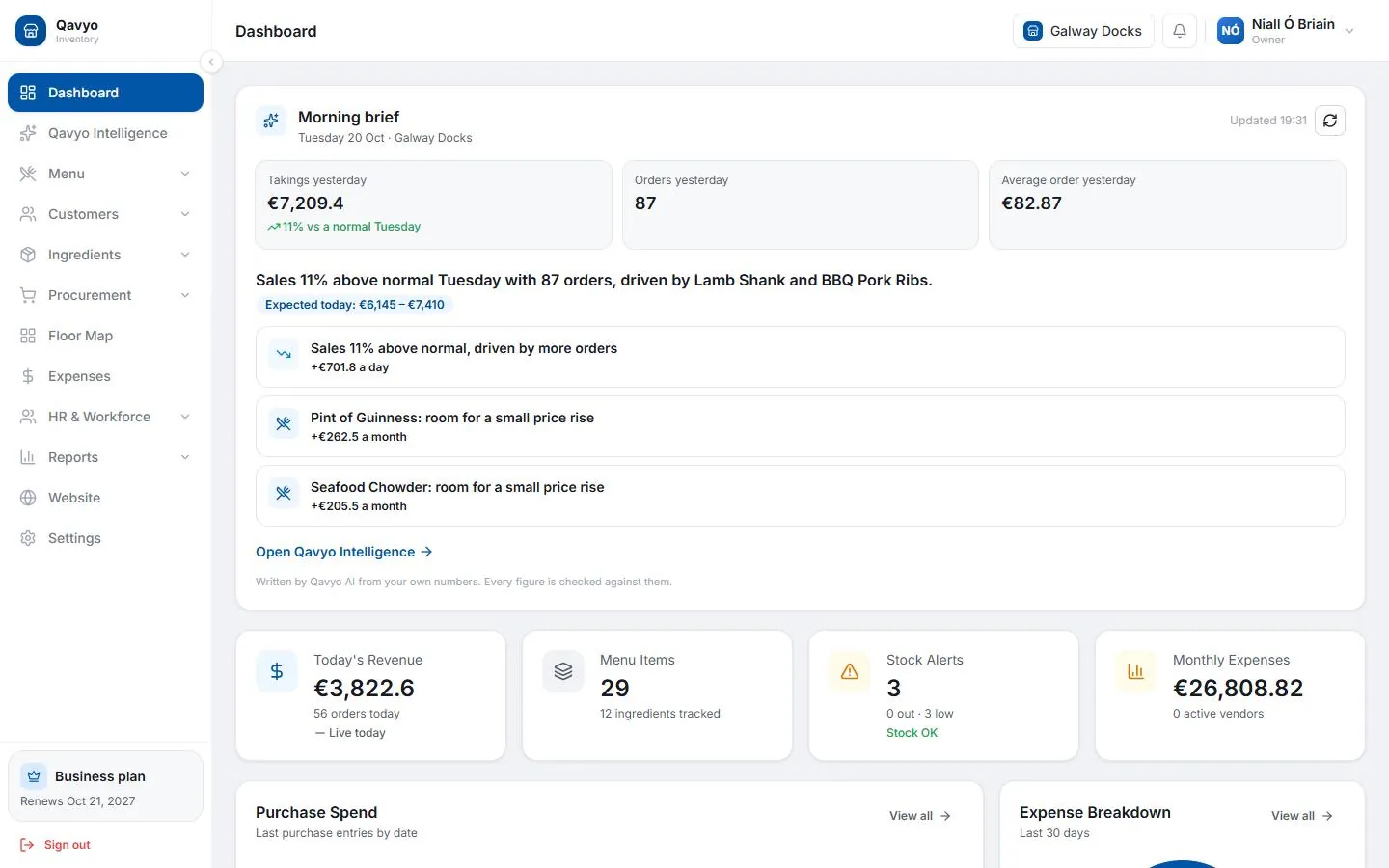
- You land on the back office dashboard.
3. Choose a plan
Your 30-day trial gives you the full Business plan — no card needed. After the trial:
- Starter — one branch, POS and basic reports.
- Growth — adds workforce, payroll, advanced reports and loyalty.
- Business — adds multi-branch, customer website and app, email marketing.
See the pricing page for a full comparison. You can upgrade or downgrade any time from Settings → Subscription.
4. Open the back office
Bookmark inventory.qavyo.com — this is your control centre for menu, staff, inventory, reports and all settings.
What's next
Go to Settings to add your logo, currency, tax and opening hours before anything else.