Customer website
Your own branded site with online ordering, reservations and loyalty — live in minutes.
Finish your menu, opening hours, logo and address first — the website pulls all of it automatically.
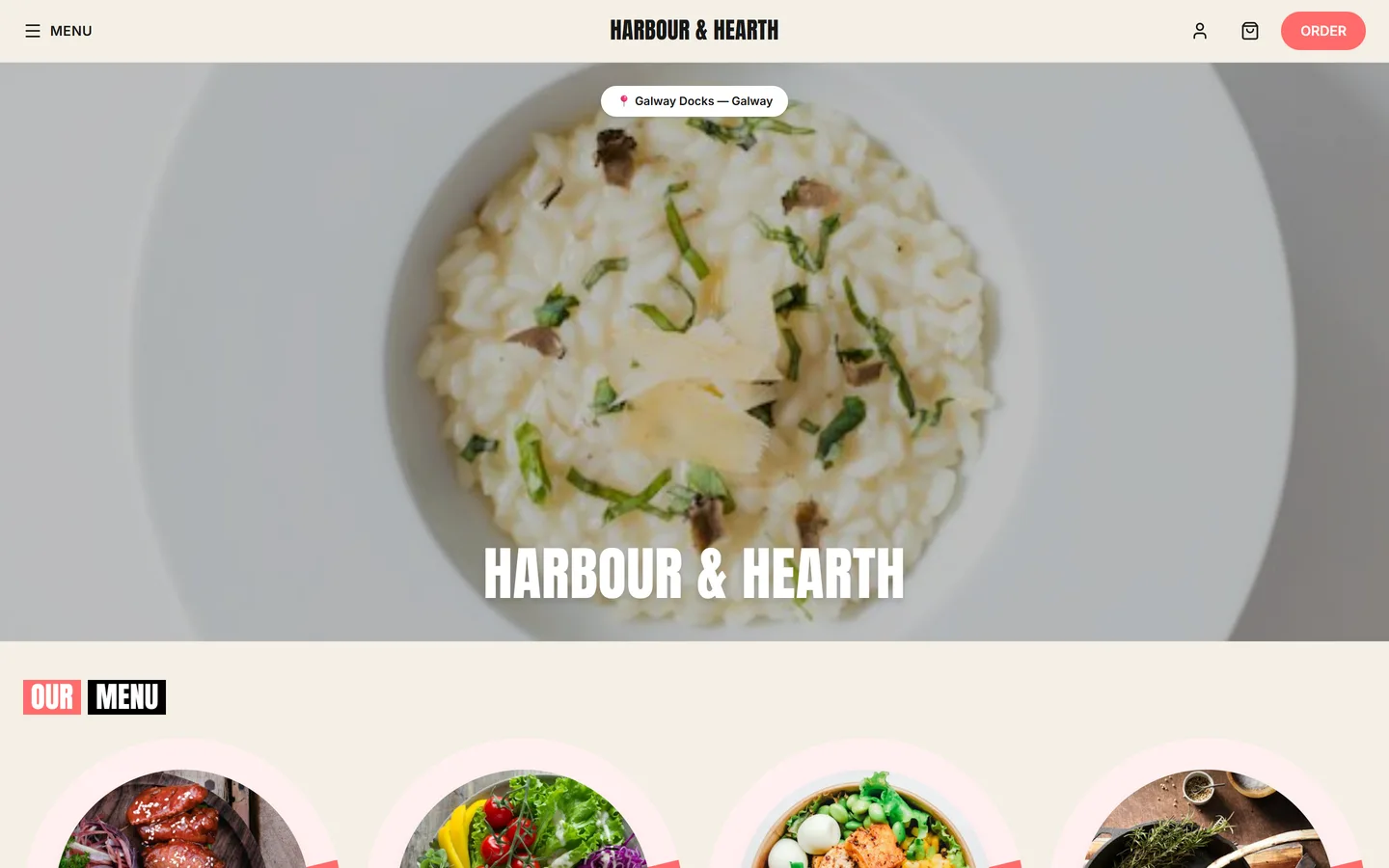
1. Access website settings
In the back office sidebar, click Website. This opens the website admin in a new tab.
2. Set your domain
- Website → Settings → Domain.
- Your default is yourname.qavyo.com. Change the slug to match your restaurant.
- Own domain? Add a CNAME to
sites.qavyo.comin your registrar, then enter your domain in Custom domain. SSL is automatic. - Save.
Custom domains take up to 24 hours for DNS to propagate. Your .qavyo.com subdomain works immediately.
3. Appearance
- Website → Appearance.
- Your logo and name come from Settings → Company automatically.
- Pick a primary colour to match your brand.
- Upload a cover photo (min 1400 × 700 px) — restaurant interior or a signature dish.
- Save.
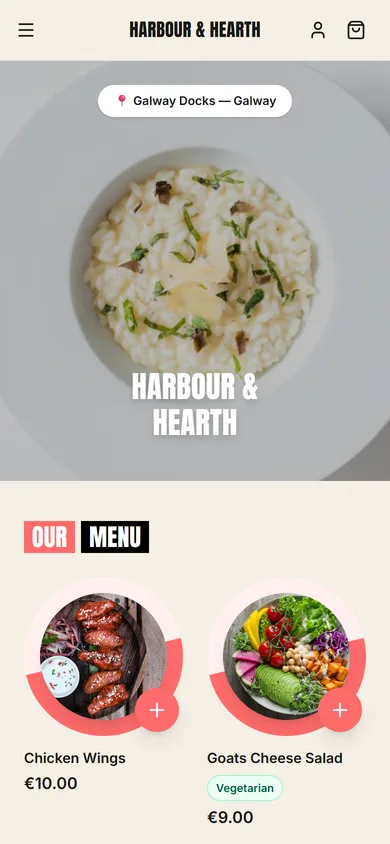
4. Enable online ordering
- Website → Online ordering → On.
- Choose order types: Collection, Delivery or both.
- Set minimum order value, estimated prep time, delivery zone and delivery fee.
- Save.
Online orders appear on the POS in real time and print to the kitchen automatically.
Start with a 20-minute prep time. Easier to beat expectations than to fall short.
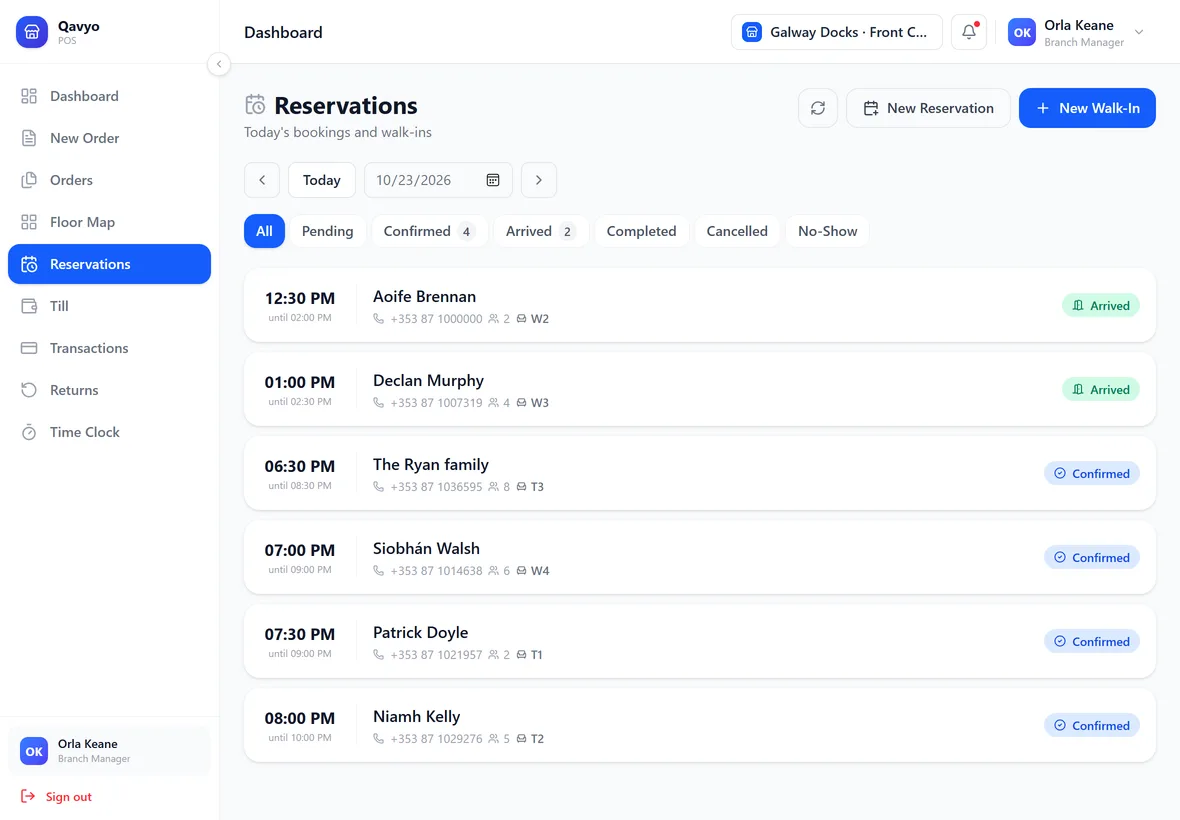
5. Enable reservations
- Website → Reservations → Accept reservations online → On.
- Set max party size and booking window.
- Add a note customers see on submission (e.g. "We will call to confirm").
- Save.
6. Add Google Business and social links
- Website → Settings → Links.
- Paste Google Business URL, Instagram and Facebook links.
- Save.
7. Preview and go live
- Click Preview to open the site in a new tab.
- Place a test order end to end. Confirm it appears on the POS and the confirmation email arrives.
- Share your website address with customers.
What's next
Reports and Intelligence → — read your daily numbers and morning brief.