Staff and HR
Add your team, set PINs, assign roles and run payroll.
Open HR & Workforce from the sidebar. Staff Directory is available on every plan. Rotas, timesheets and payroll require Growth or above.
1. Add a staff member
- HR & Workforce → Staff Directory → Add staff.
- First name, last name, phone number.
- Assign a role: Owner, Manager, Cashier or Kitchen.
- Set a 4-digit POS PIN — this is how they sign in on the till.
- Save.
Staff do not need an email address to use the POS — PIN is enough.
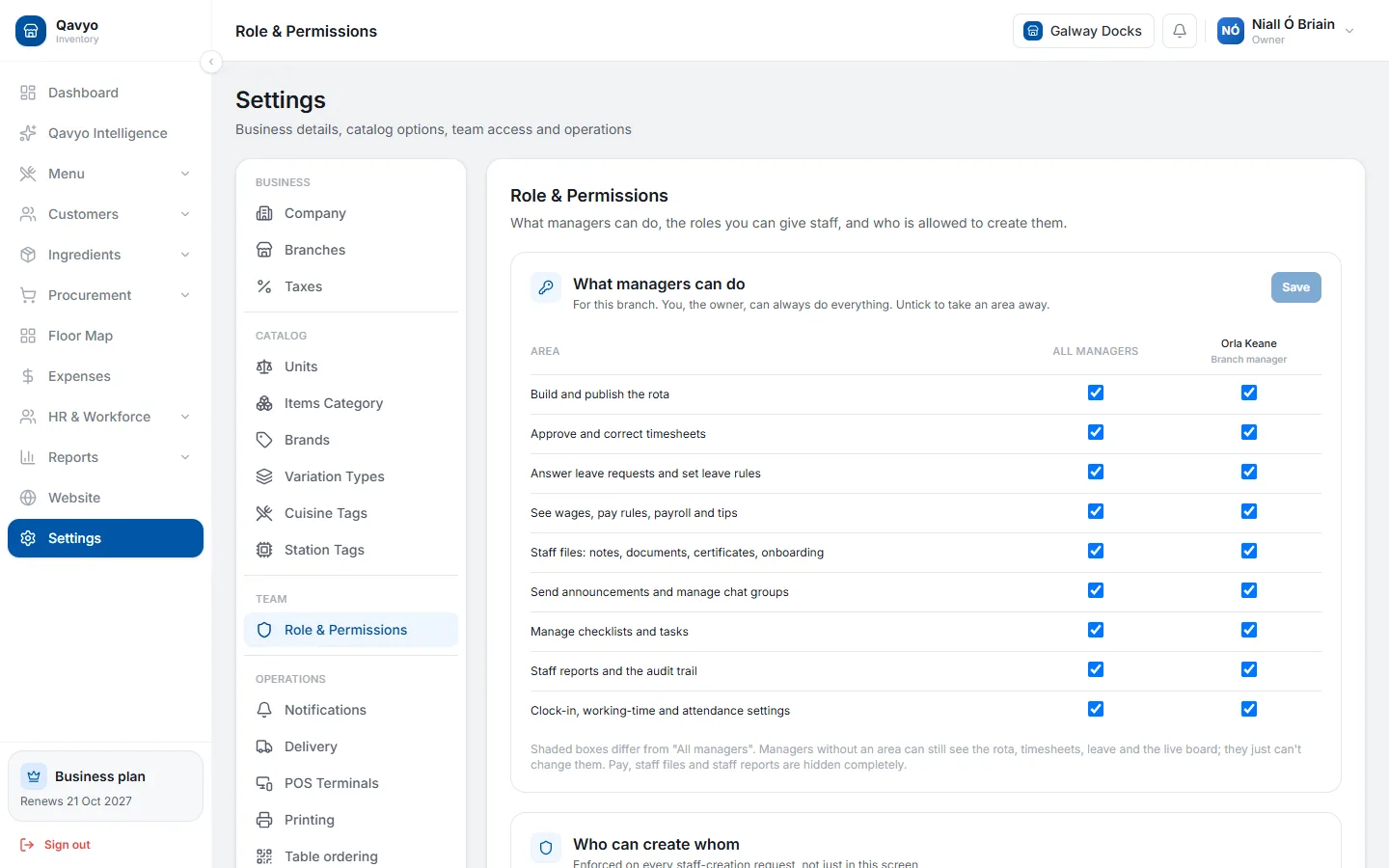
2. Roles and permissions
- Owner — full access including billing.
- Manager — everything except billing; can void orders, apply discounts, run reports.
- Cashier — takes orders and payments. Cannot void or see reports (unless you allow it).
- Kitchen — KDS only. Cannot access order screen or reports.
Customise permissions in Settings → Roles.
3. Clock-in kiosk
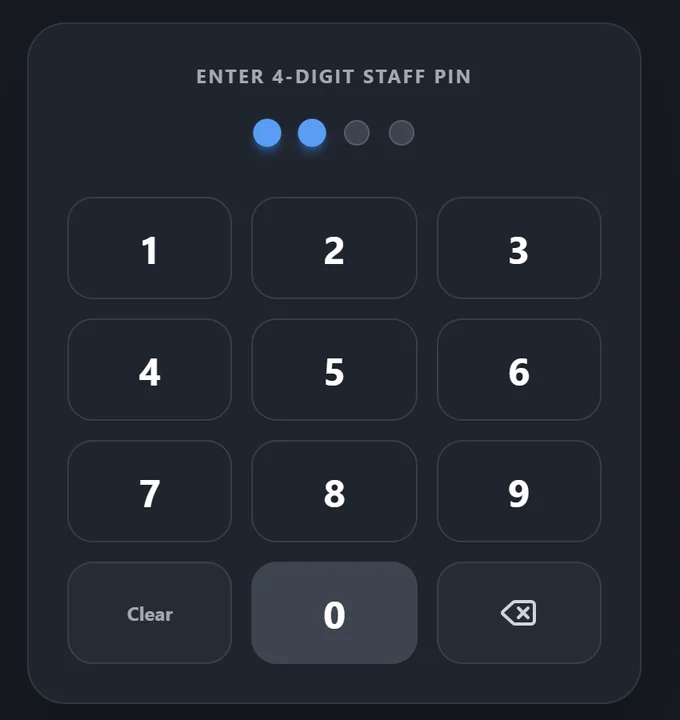
- HR & Workforce → Time Kiosk → Launch kiosk on any tablet near the back door.
- Staff tap their name and PIN to clock in or out.
4. Shift roster
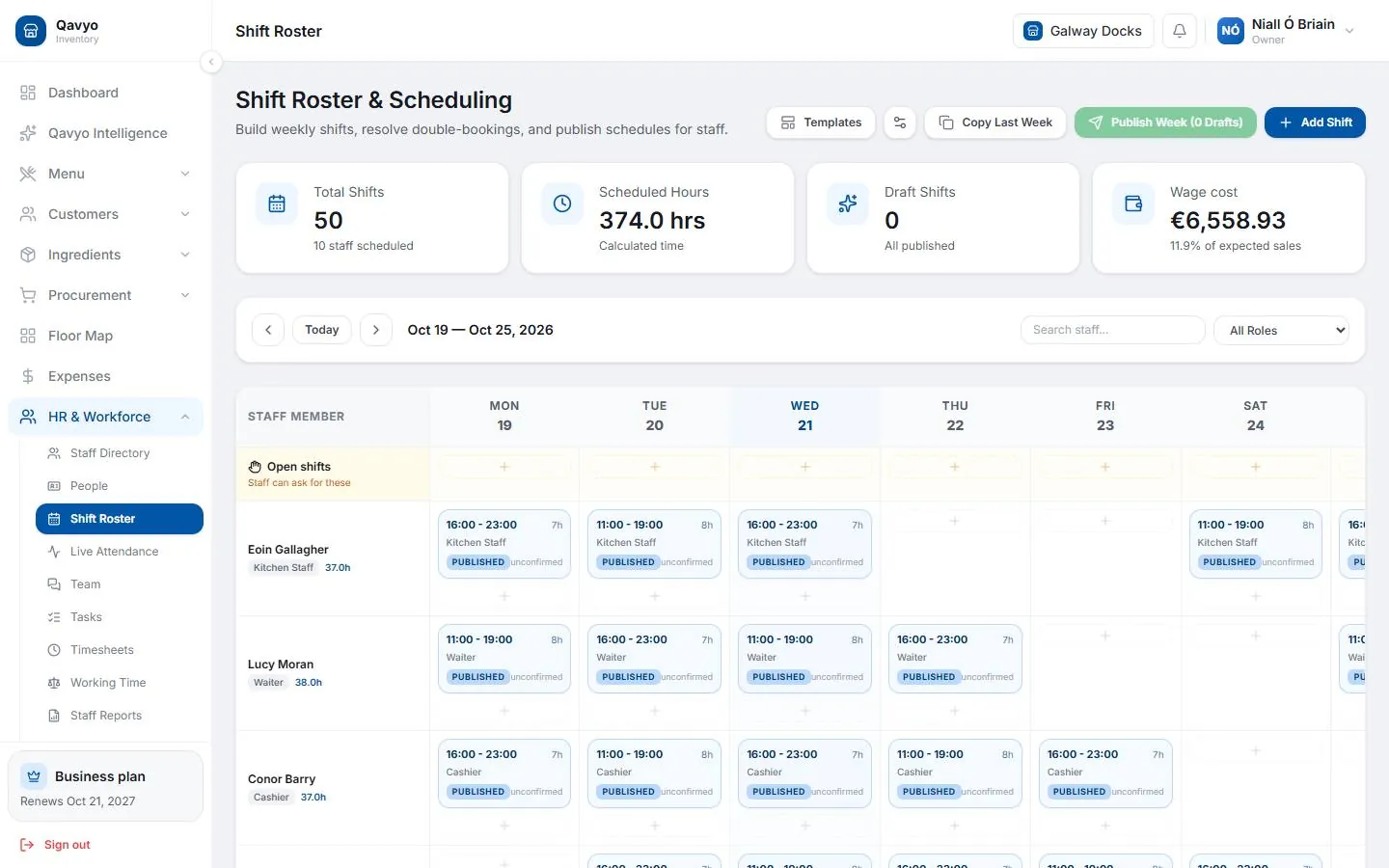
- HR & Workforce → Shift Roster → Add shift.
- Assign staff member, date, start and end times.
5. Timesheets
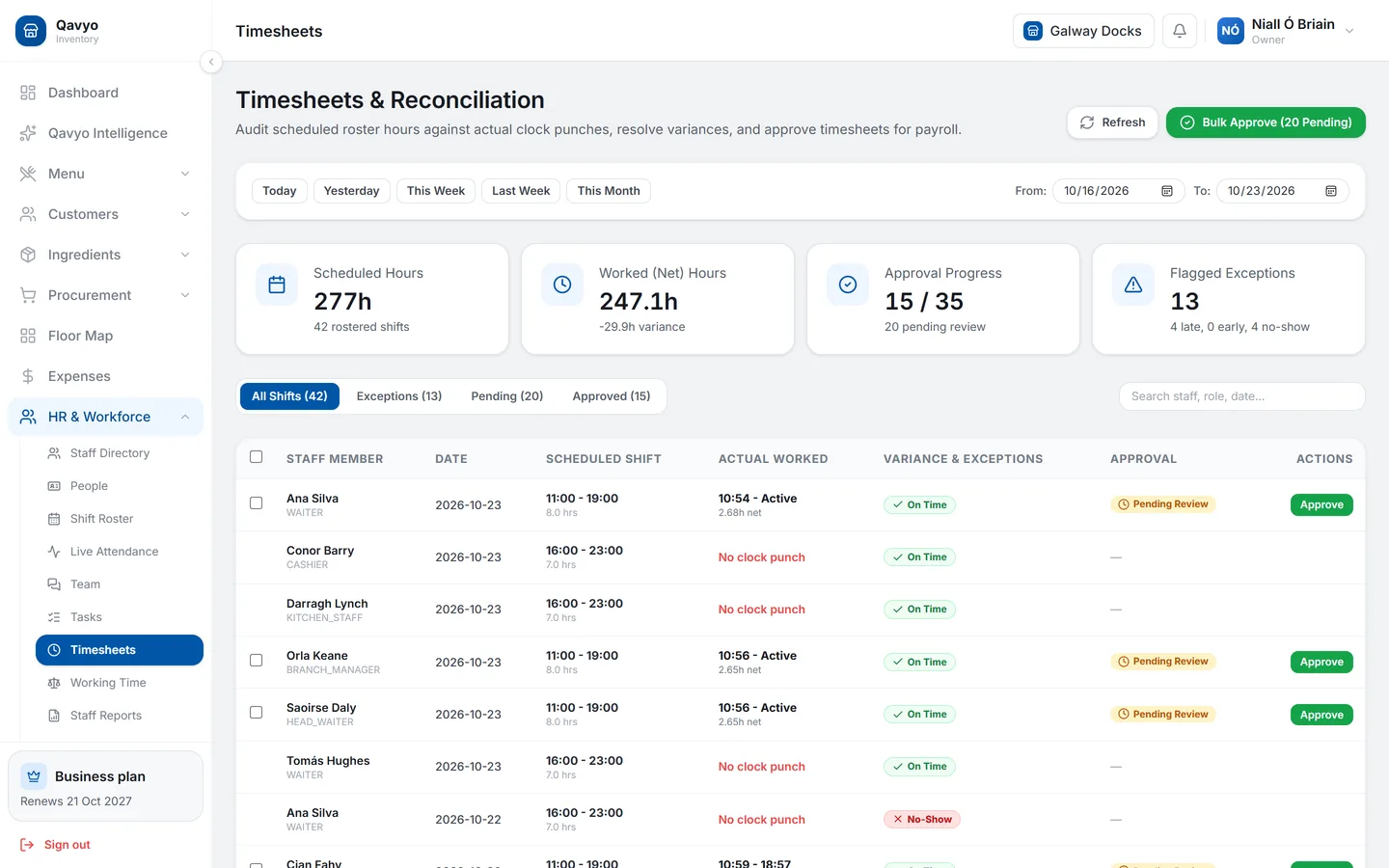
- HR & Workforce → Timesheets — all clock-ins and outs.
- Click any row to edit if staff forgot to clock out.
- Approve timesheets at the end of each pay period before running payroll.
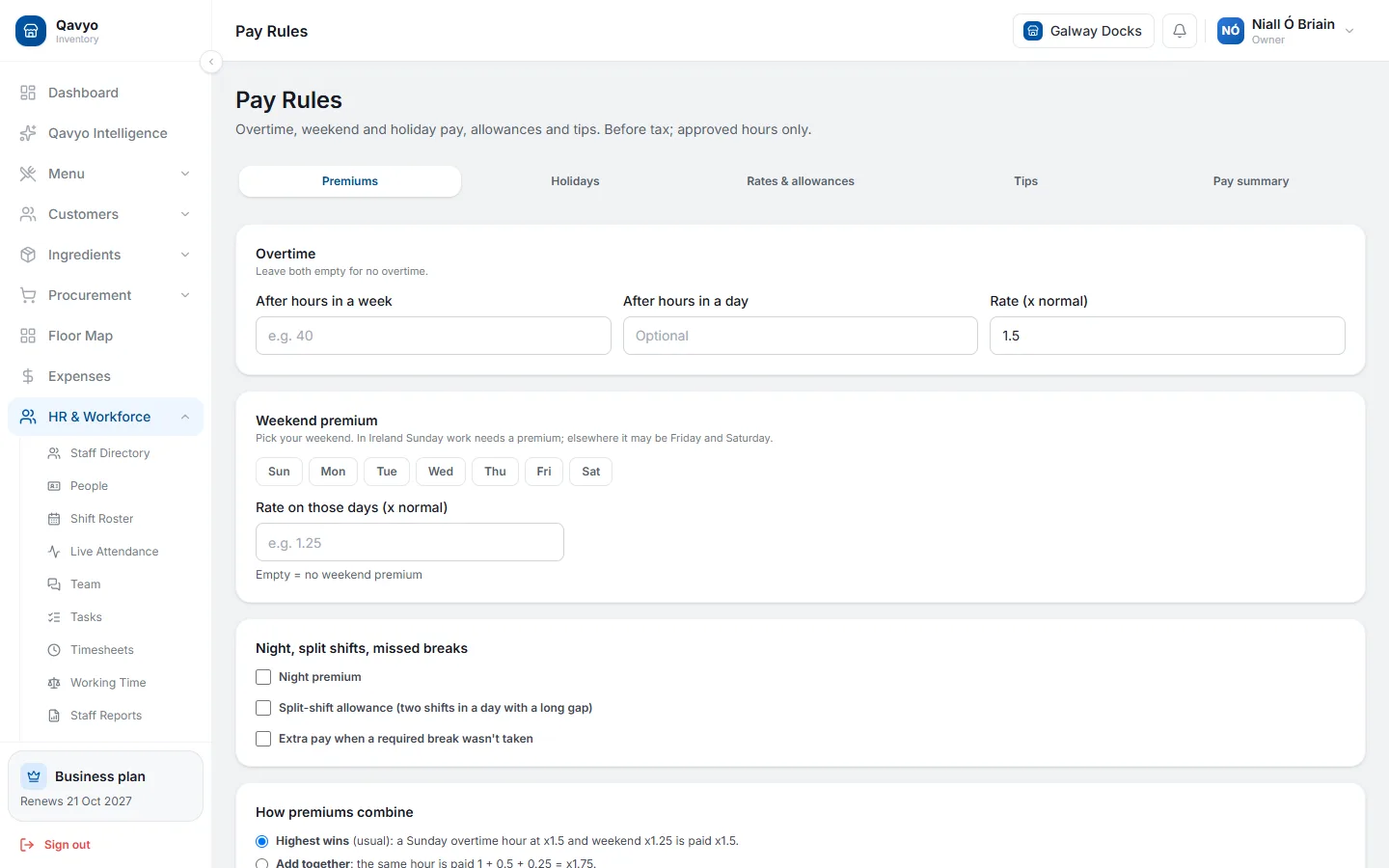
6. Pay rules
- HR & Workforce → Pay Rules — set hourly rates, overtime multipliers, weekend and holiday premiums.
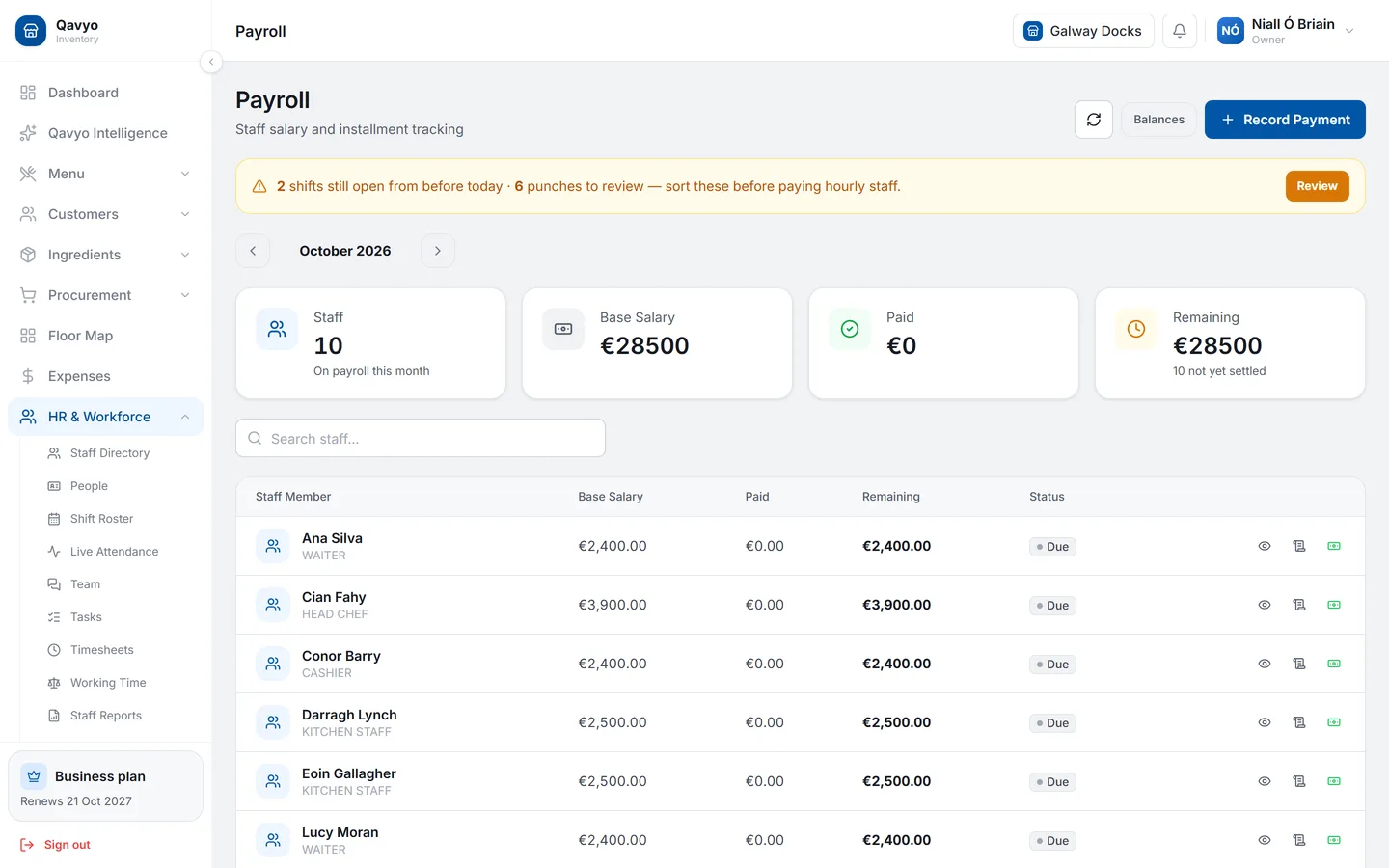
7. Run payroll
- HR & Workforce → Payroll → choose pay period → Calculate.
- Qavyo uses approved timesheets and your pay rules to compute gross pay.
- Review each payslip, adjust if needed, click Approve.
- Download or print payslips from the same screen.
What's next
Ingredients and inventory → — track food cost and stock.