POS terminals
Pair your Android device as a till and take your first order.
You need: Android phone or tablet (Android 8+), Qavyo POS app from Google Play, device and printers on the same Wi-Fi.
1. Generate a pairing code
- Settings → POS Terminals → Add terminal.
- Name it (e.g. "Counter 1") → Create code.
- An 8-digit code appears. Valid for 10 minutes.
2. Pair the device
- Open the Qavyo POS app on Android.
- Tap Pair device and enter the 8-digit code.
- Done — the device stays paired permanently.
3. Sign in as staff
The POS uses a 4-digit PIN, not a password. Set each staff member's PIN in HR & Workforce → Staff Directory first. Then tap a name on the POS lock screen and enter the PIN.
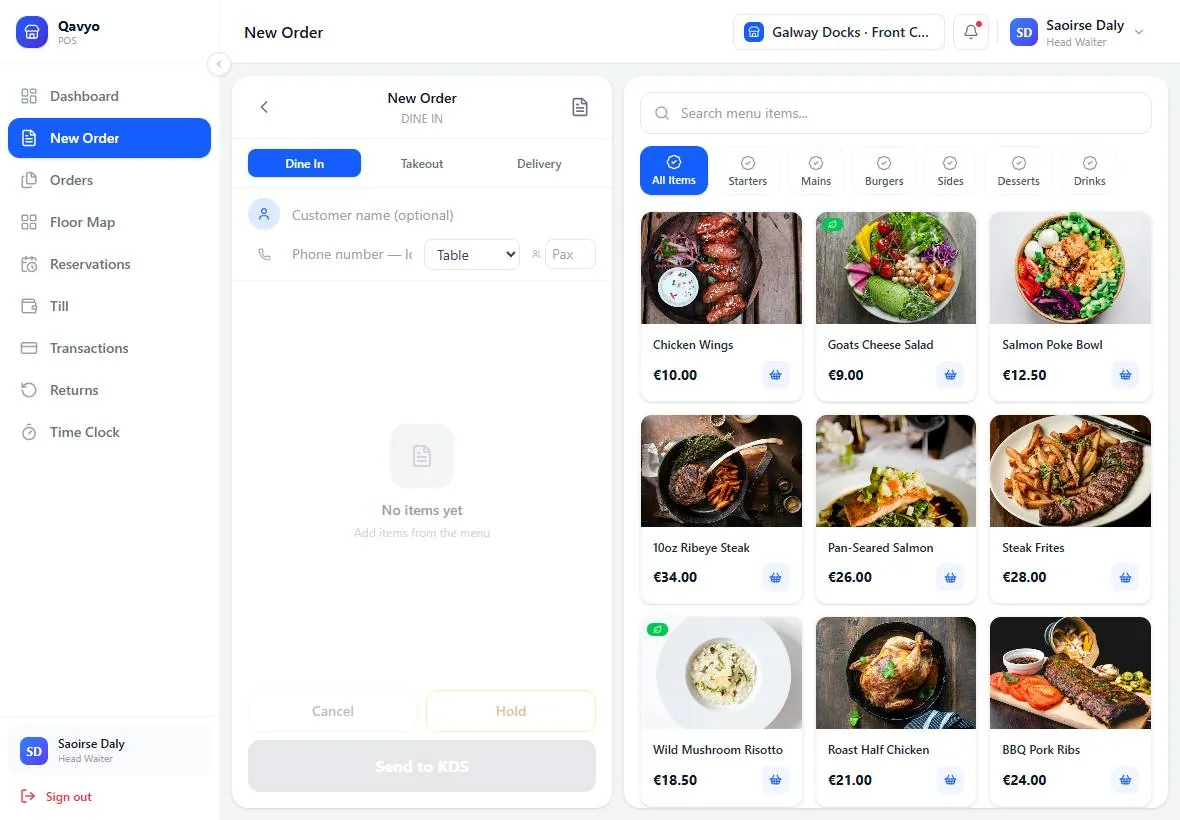
4. Take a test order
- Tap a table (or skip to the order screen in quick-sale mode).
- Add items, tap Checkout, choose payment method.
- Receipt prints automatically if a printer is paired.
- Order appears on the kitchen KDS or prints to the kitchen station printer.
5. Receipt printer
- Settings → Printing → Add printer.
- Enter the printer's IP address.
- Set Station to POS receipt.
- Test print to confirm.
Offline mode
When the internet drops, the POS keeps working. Orders save locally and sync when the connection returns. Kitchen printers on the same Wi-Fi keep printing throughout.
Web POS (no Android device?)
Use https://pos.qavyo.com in any browser. Same features except Bluetooth printing.
What's next
Kitchen display → — pair kitchen screens and set up station printers.