Kitchen display and printing
Pair kitchen screens, add printers and route tickets to the right station.
Each order routes to the station that prepares it — Grill, Fryer, Drinks, Packing, or custom stations. Each station can have a KDS screen, a printer or both.
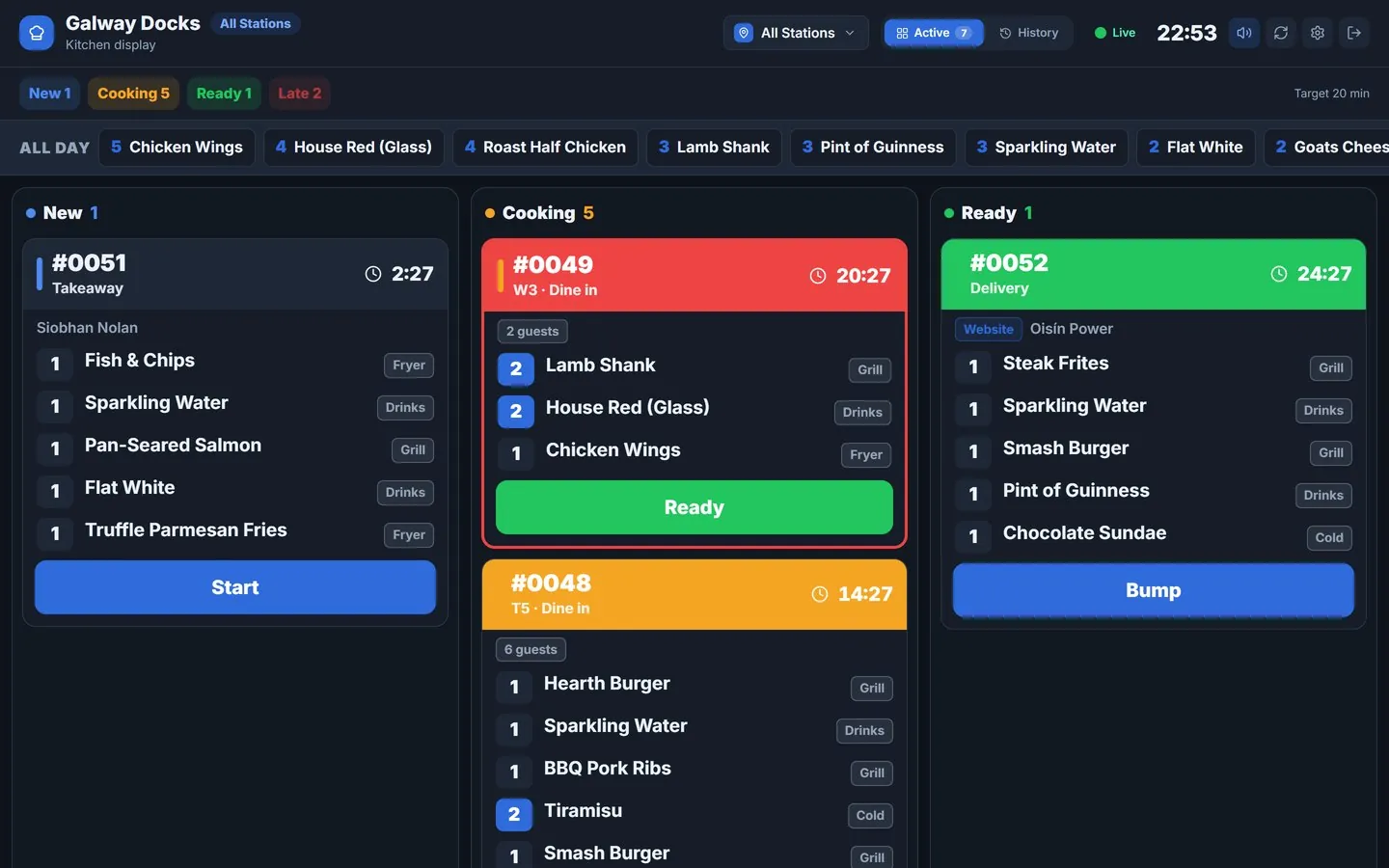
1. Pair a kitchen screen (KDS)
- Settings → POS Terminals → Add terminal → Kitchen screen.
- Name it (e.g. "Grill station"), choose which stations it handles.
- Click Create code — enter the 8-digit code in the Qavyo KDS app.
Or use the web KDS at https://kds.qavyo.com on any browser.
2. Using the KDS
- Start — tap when you begin cooking. Ticket turns yellow on the POS.
- Ready — tap when plated. Ticket turns green.
- Bump — clears the completed ticket from the screen.
3. Add kitchen printers
Prefer paper tickets over screens? Add a printer per station.
- Give the printer a fixed IP in your router.
- Settings → Printing → Add printer → enter IP.
- Set Station to match (Grill, Fryer, Drinks, Packing).
- Test print to confirm.
4. Assign stations to menu items
Each item must know which station prepares it.
- Menu → Menu Items → open an item.
- Set Kitchen station → Save.
- Repeat for every item.
Items with no station go to the default printer or do not print if no default is set.
5. Test the full flow
- Place a test order with items from different stations on the POS.
- Confirm each KDS shows only its items.
- Confirm each printer prints only its items.
- Bump on the KDS and confirm the POS updates.
Kitchen printers on your local Wi-Fi keep printing even when the internet is down.
What's next
Staff and HR → — add your team and set PINs.