Email and SMS marketing
Automated messages and campaigns that go out in your restaurant name — not Qavyo's.
All marketing sends from your restaurant name. Customers see your brand. Replies go to your inbox. Marketing requires the Business plan.
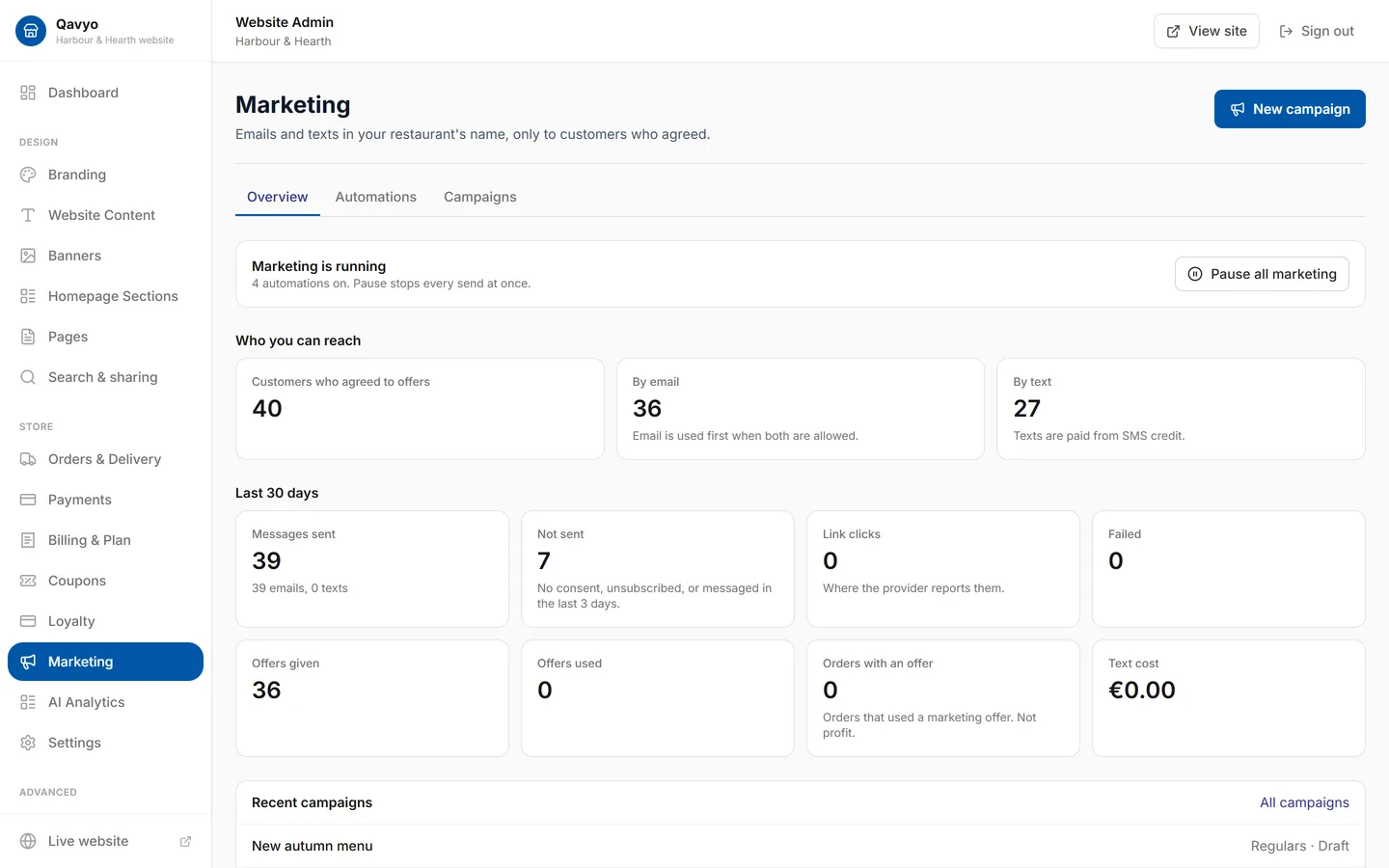
1. Set your reply-to email
Settings → Company → Reply-to email. Customer replies land here.
2. Turn on automated flows
Open Marketing → Automations. Seven flows are ready to switch on:
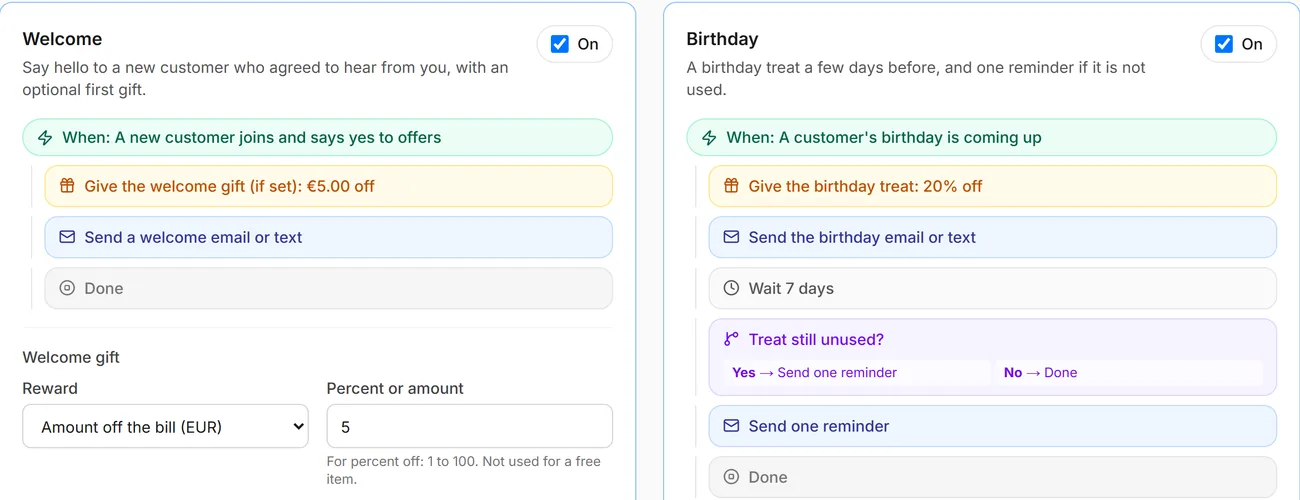
- Welcome — after a customer's first order. Add a welcome offer.
- Birthday — a few days before their birthday. Add a birthday discount.
- Second visit — after order #2 to build the habit.
- Win-back — if a customer has not ordered in 60 days.
- Points expiry — warns before unused points expire.
- VIP — when a customer reaches your top loyalty tier.
- Feedback — asks for a review the day after an order.
To enable a flow:
- Click the flow → edit message text, subject, offer.
- Preview the email.
- Toggle Active → Save.
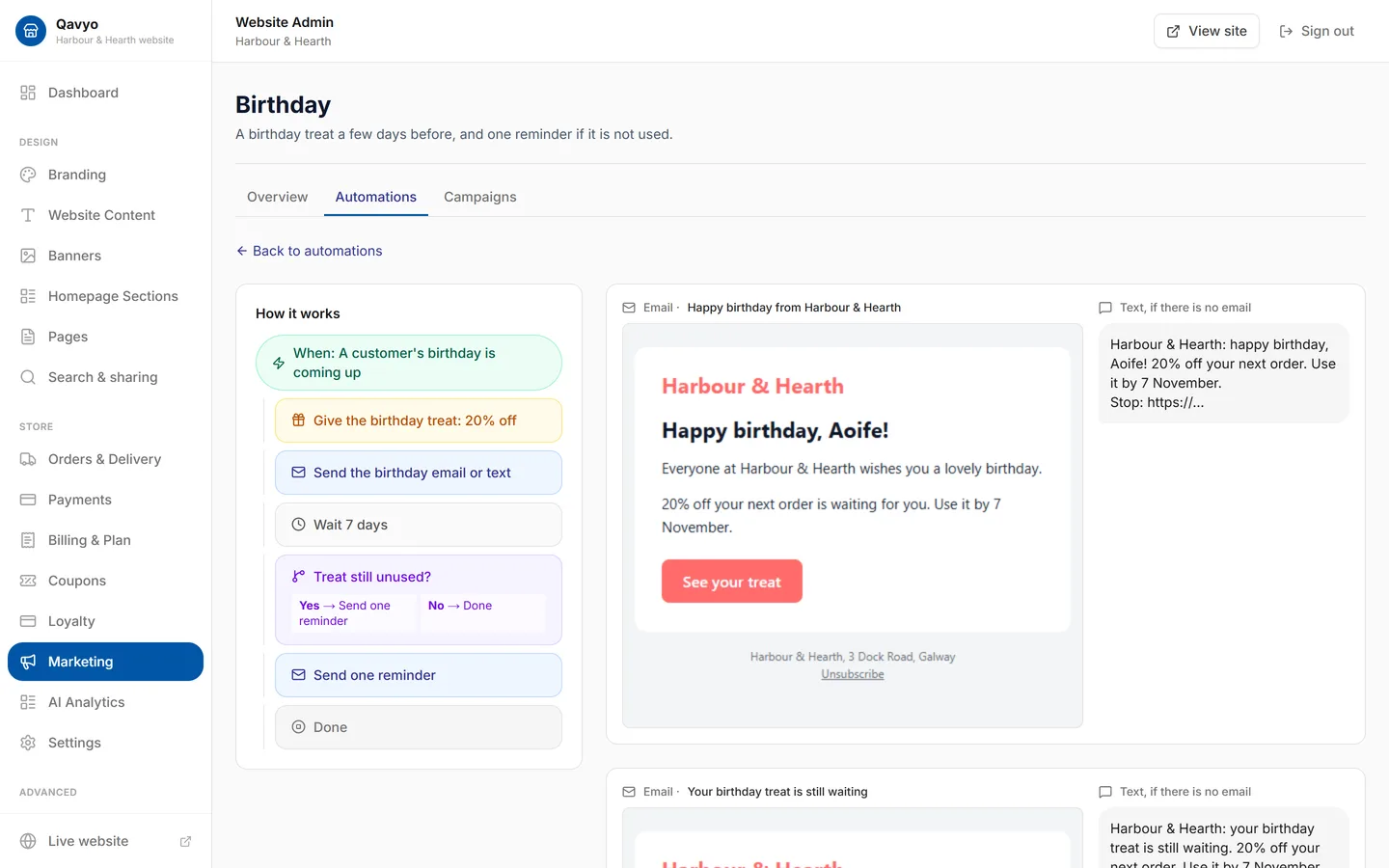
3. Build a campaign
One-off messages to a specific audience — a weekend special, a menu launch.
- Marketing → Campaigns → New campaign.
- Choose audience: All customers, Active (last 90 days), Loyal (top tier) or At-risk (45–90 days quiet).
- Write subject, heading, message and optional offer code.
- Preview → Send now or schedule a date and time.
- Schedule.
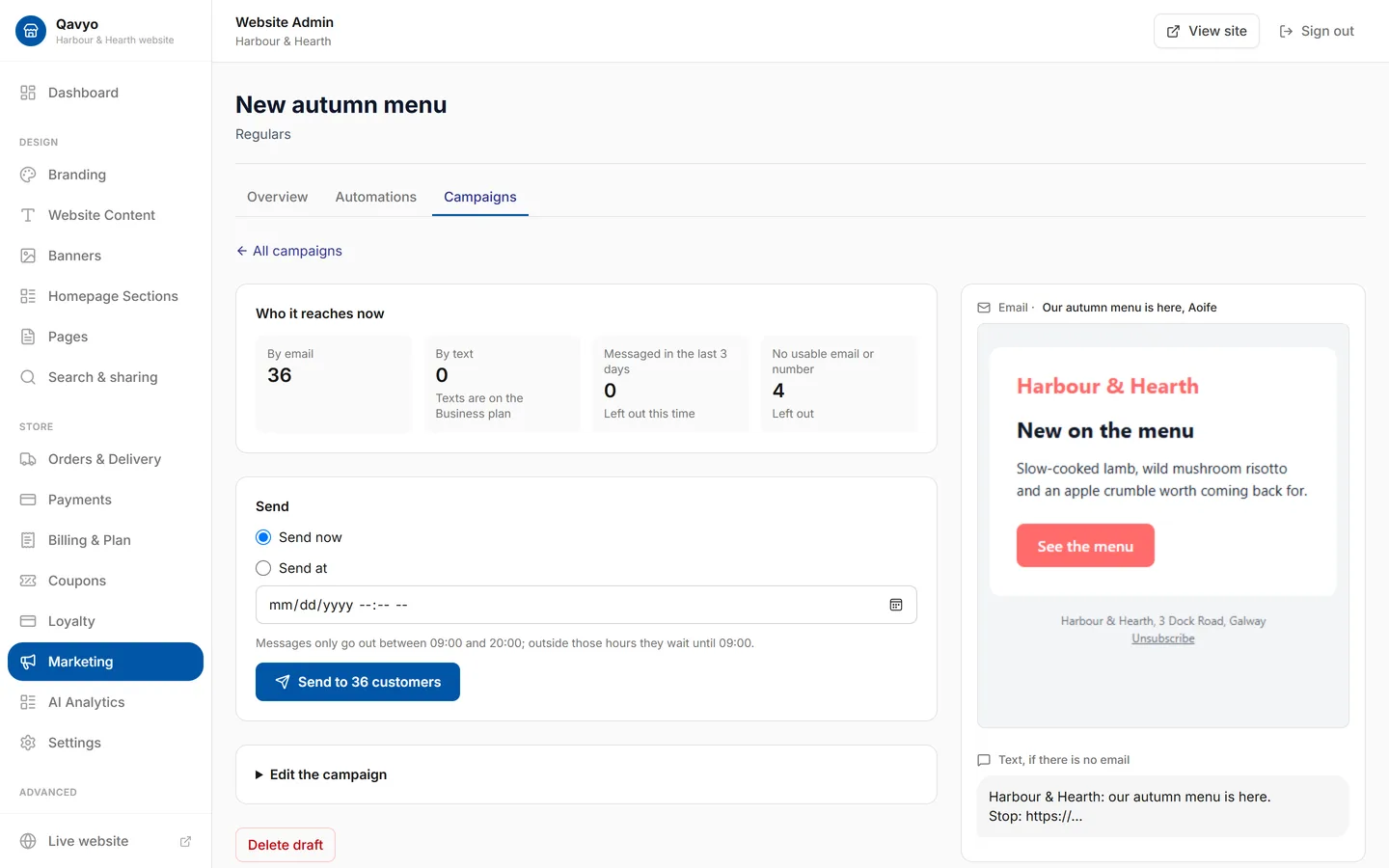
4. Sending rules (built-in protection)
- Messages send only between 09:00 and 20:00 in the customer's local time.
- No customer receives more than one promotional message every 3 days, regardless of how many flows fire.
- Transactional messages (receipts, sign-up codes) are not affected.
5. SMS fallback
If a customer has a phone number but no email, Qavyo sends the message as SMS instead. Add SMS credits at Settings → SMS wallet.
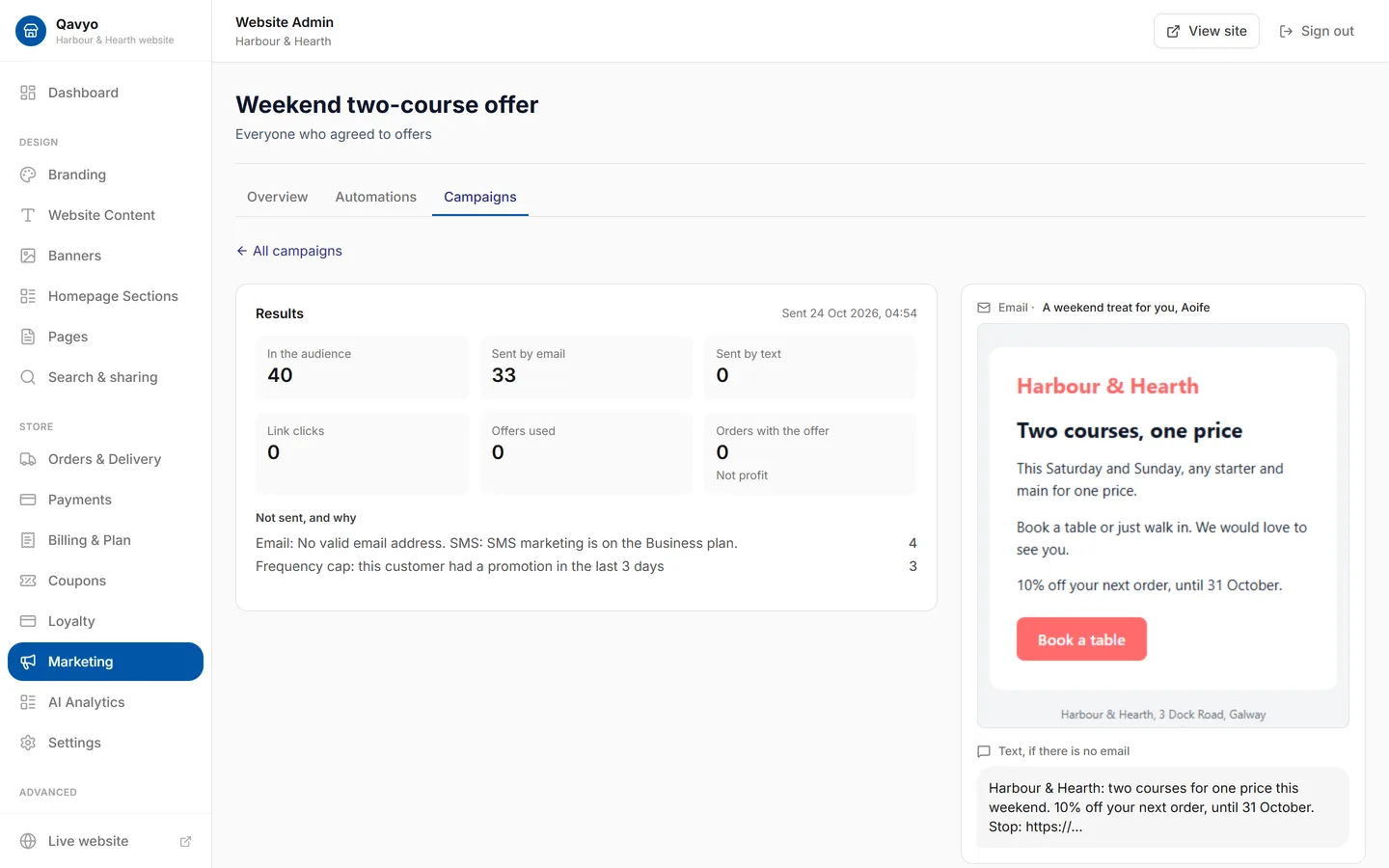
6. Campaign results
- Marketing → Campaigns → click a completed campaign.
- See sent, delivered and offer redemptions.
What's next
Customer website → — launch your branded online ordering site.