Menu
Build your full menu — categories, items, add-ons and schedules.
Open Menu from the sidebar. It has three sub-sections: Menu Items, Addon Groups and Schedules.
1. Create categories
Categories organise your menu on the POS and online.
- Menu → Menu Items → Add category.
- Name it (e.g. "Starters", "Mains", "Drinks").
- Drag to reorder.
- Save.
2. Add items
- Click Add item inside a category.
- Name, price, description (optional), photo (600 × 400 px min).
- Tax rate (if different from your default).
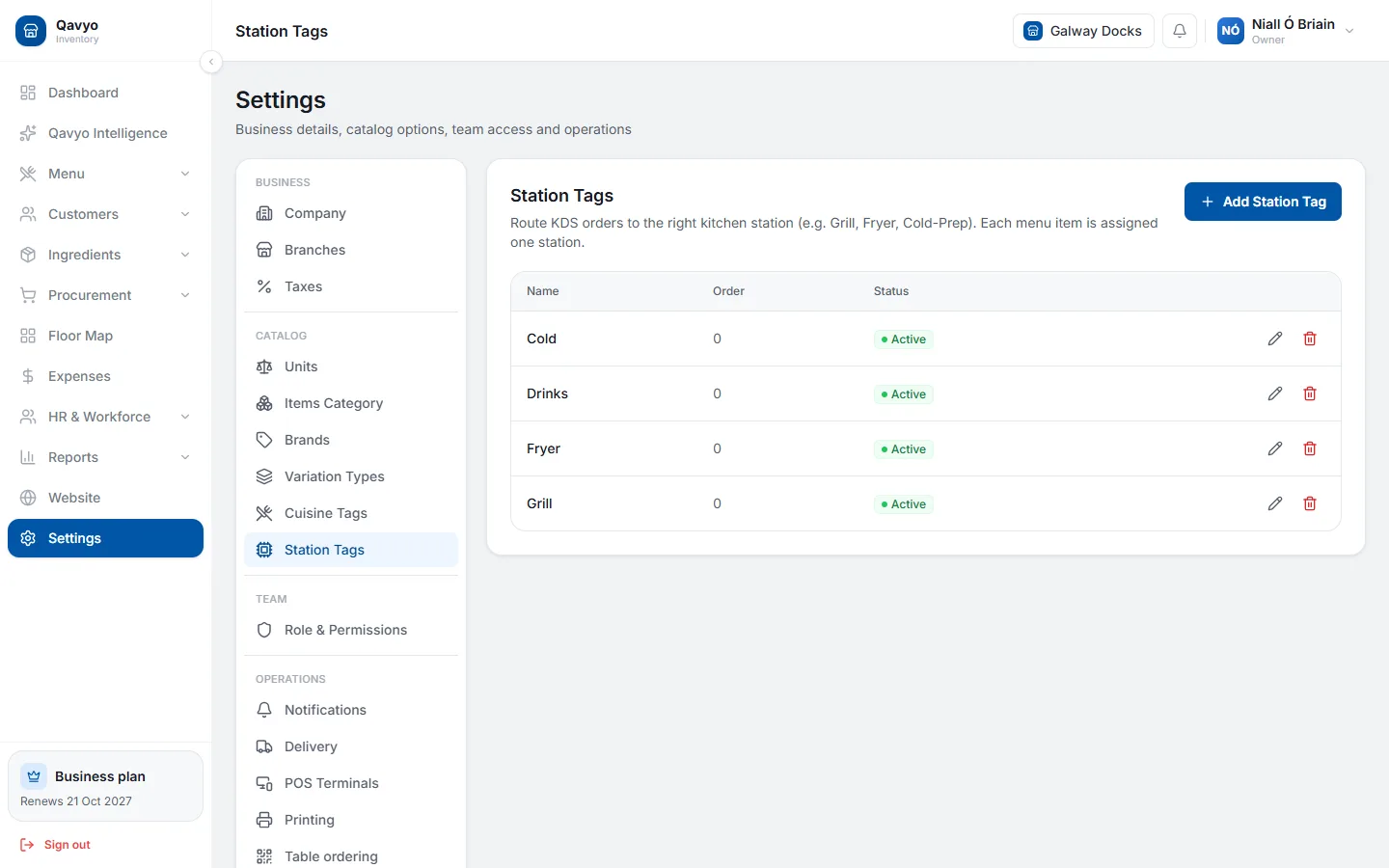
- Kitchen station — pick the station that prepares this item (Grill, Fryer, Drinks, etc.). This routes the ticket to the right printer or KDS screen.
- Save.
3. Add variants (sizes, portions)
Use variants for the same dish at different prices — Small / Medium / Large.
- Open an item → Variants → Add variant.
- Name and price for each size.
- Save.
4. Create addon groups (extras)
Add-on groups are extras — "Choose a sauce", "Add toppings".
- Menu → Addon Groups → Add addon group.
- Name the group, add options with prices.
- Set Min (1 = required) and Max (1 = pick one; 0 = unlimited).
- Save.
- Open a menu item → Addon Groups → Add group to attach it.
5. Availability schedules
Show an item only at certain times — breakfast until 11:00, lunch specials Mon–Fri.
- Menu → Schedules → Add schedule.
- Set days and active hours.
- Open any item and assign the schedule under Availability.
Items with no schedule are always visible.
You can bulk-import items from CSV. Go to Menu Items → Import and download the template first.
What's next
Floor map → — draw your dining room and name your tables.